Before you can do any work on the crashed drive you will need to
remove it from the current machine and connect it to another machine as a
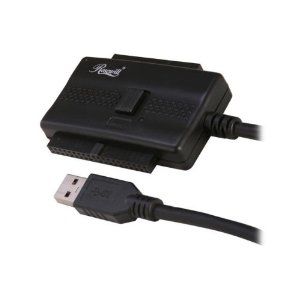
secondary drive. The best way to do this is to use a
USB to IDE/SATA adapter.
If you don’t have one available then you may be able to connect the
drive to another desktop computer internally as a secondary drive. If
you do, make sure that the machine detects the drive in the BIOS or you
won’t be able to access it once the computer starts up.
Try to Copy the Data to Another Drive
After you connect the drive to another computer either internally or
with the USB adapter, check to see if you can browse the contents of the
drive. If you can, try to copy data off that you would like to
recover. There is a chance that only the operating system is corrupt
and the user data is still fine.
Use Data Recovery Software
If you can’t manually copy the user data off then you can try to
recover it using data recovery software. Whatever you do, do not
install the recovery software on to the drive that you are trying to
recover data from. Doing so could actually overwrite files that you want
to restore.
PC Hard Drive Recovery
free hard drive recovery tool from Piriform (the makers of
CCleaner) and is one of the best free PC data recovery tools available.
Even if the drive has been formatted, Recuva can scan the drive recover
files. If the basic scan fails, there is also a deep scan to discover
more deeply-buried results. There is also a portable version if you don’t want to install the full version.
When you launch Recuva, you will be presented with a wizard that will
guide you through restoring your files. First you will choose the type
of file you need to recover, then the location, and then start the scan
or choose “Enable Deep Scan” if the quick scan doesn’t find the files
you need to recover.

No comments:
Post a Comment